
Classification systems
Choose the standards your families are classified against, and add your own system.
Work in progress
A classification system is a published list of codes for the things in a building: walls, doors, pumps, and so on. Family Manager uses them to check and suggest the classification of your families.
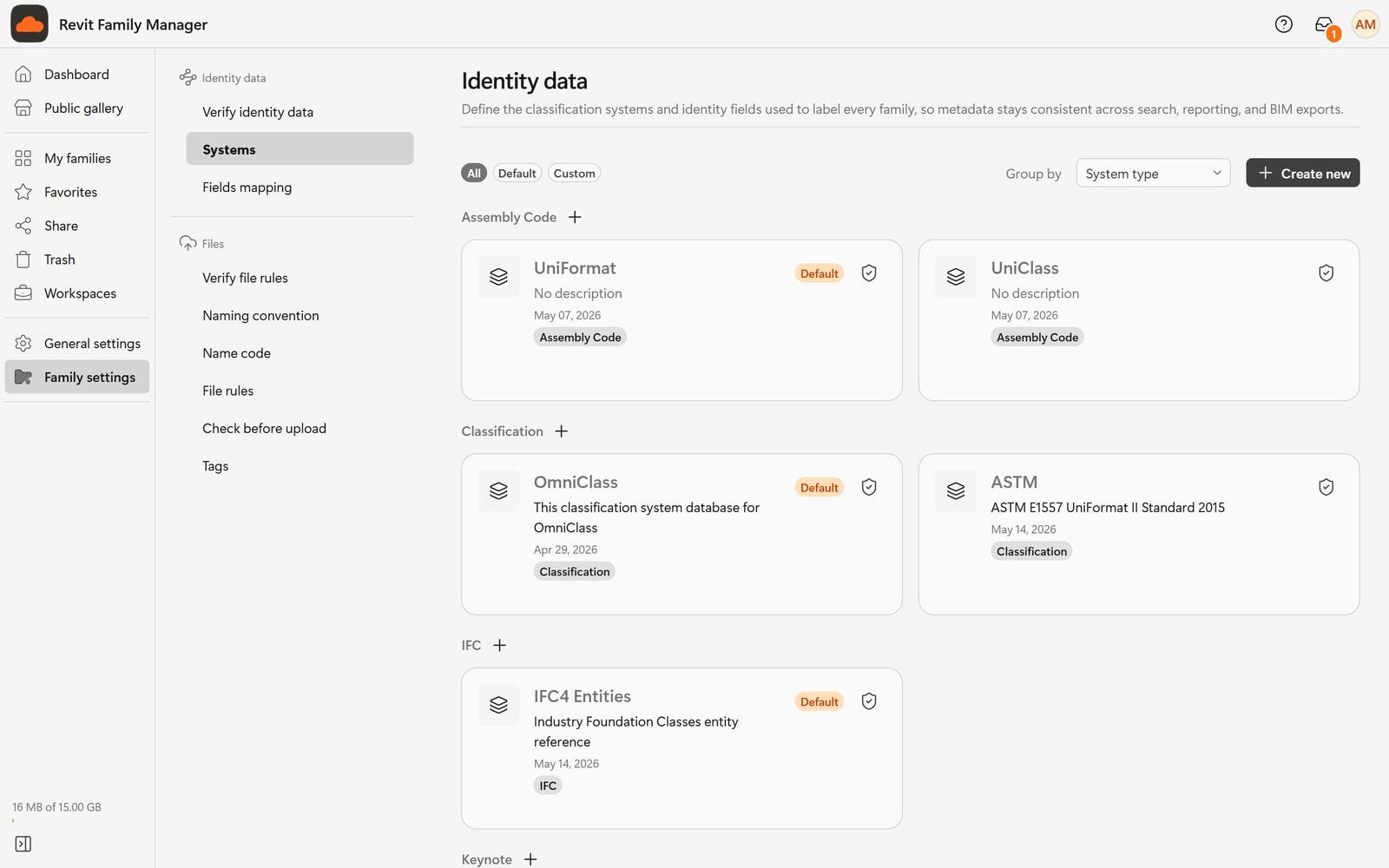
Open Settings, Family, Systems to see them.
Platform systems and your own
| Kind | Who manages it | What you can do |
|---|---|---|
| Platform systems such as OmniClass, UniFormat II and Uniclass | The platform | Choose which one you use. You cannot change their content. |
| Your custom systems | You | Create a system from your own code list, upload new versions, and use it like any other. |
Use a custom system when your office has its own coding scheme, for example company spec codes, that no published standard covers.
Tables and versions
Some standards are really several lists:
- OmniClass has numbered tables, for example table 21 for elements and table 23 for products.
- Uniclass has tables with letter codes, such as
Prfor products andSsfor systems. - UniFormat and custom systems are a single list.
Each table is versioned on its own. When the owner publishes a new version of one table, you do not have to take it immediately:
- If you do nothing, the app uses the latest ready version of each table.
- If you pin a version for a table, the app keeps using that version until you change the pin.
A pin belongs to your choice of system. If you switch to a different system, the pins for the old system are removed.
Which field uses which system
Choosing a system here does not by itself check anything. The link between an identity field (for example Classification number) and a system is made in Fields mapping.
Open a system
Choose a system's card to see it. The page lists its tables; for each one you see its name, which version it is on (and whether that is the newest), how many rows it has, and which table is the Default. For example, OmniClass on DEV lists Table 11 (Construction Entities by Function), Table 13 (Spaces by Function), Table 21 (Elements), Table 22 (Element - Work Results) and Table 23 (Products, the default, 6,899 rows).
The cards on the main page are grouped by what they are used for (Assembly Code, Classification, IFC, Keynote) and can be filtered with All, Default and Custom. A system marked Default is the one the app uses for that purpose until you choose another.
Create a custom system
-
On Systems, choose Create new, or the + beside a group.
-
In Create new system, choose the Target field it will classify (Target field is required), give it a Name (required) and an optional Description, then choose Create System.
-
Open the new system and add a table version: give it a Version name (for example April 2026 update), choose a file or paste the content, and check the Column mapping the app shows. Files can be
.csv,.tsvor.txt. The example in the form is:code,title,parent_code,level 11-11,Assembly Facility,,2 11-11 14,Meeting Facility,11-11,3 -
Leave Set as current version after upload ticked to start using it at once.
To publish a new version later, add another table version the same way.
TODO — Confirm before publishing
- Pinning a table version and removing a pin: the design says a pin keeps a table on one version, but no pin control was found on the system page on DEV.
- The size limit of an import, how the import progress and validation errors look, and what happens to families already classified when a version changes.
- Which role may create or change custom systems in a workspace.