
Check before upload
What the upload check shows, how duplicates are found, and what each choice does.
Work in progress
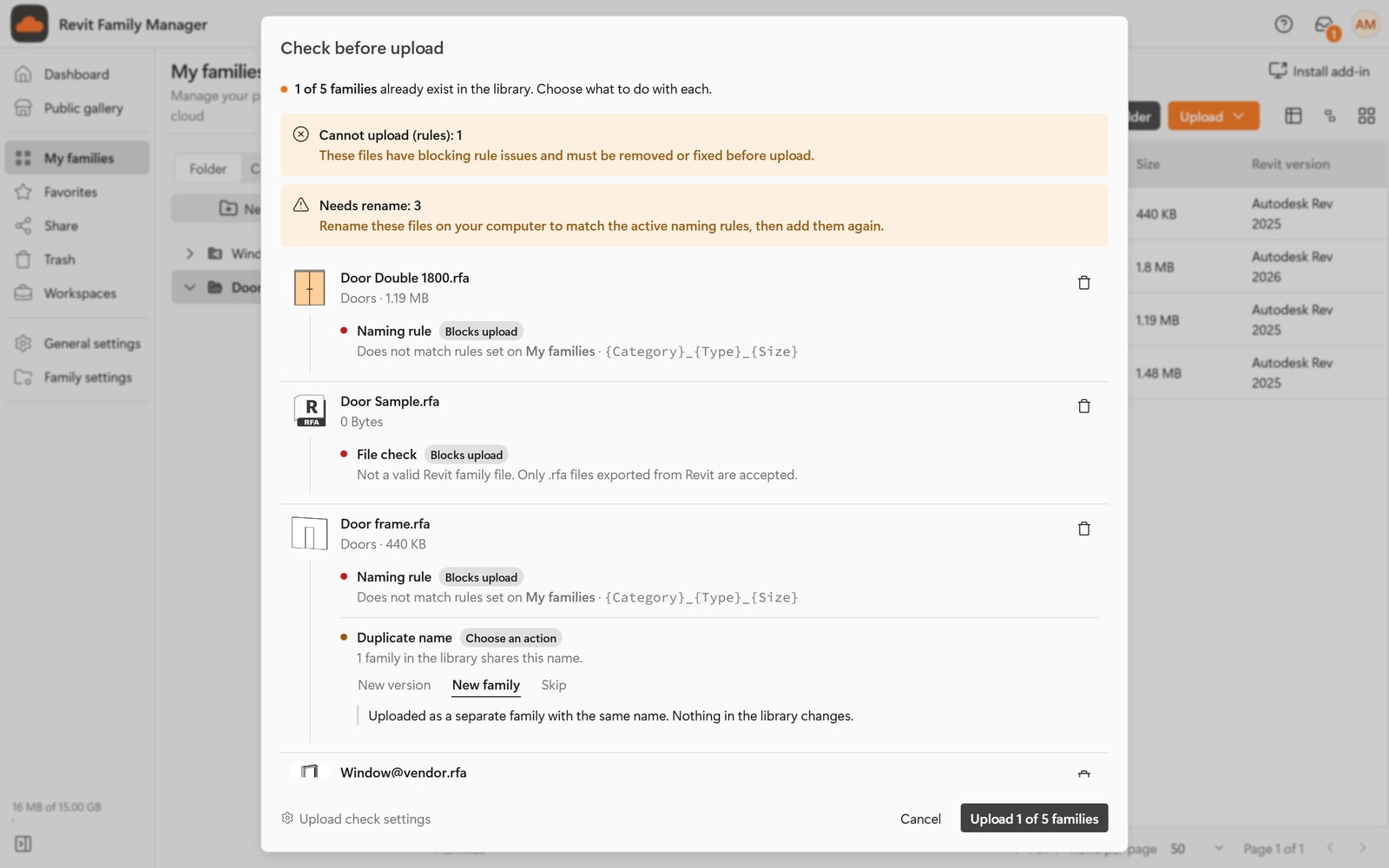
Every file you add is checked before it is uploaded. When something needs your attention, a window called Check before upload opens. It tells you, for each family, whether it can go into the library and what to do about anything that cannot. When every file passes and there is no duplicate to decide about, the window does not appear and the upload simply starts.
The stages
While the window works you see one of two messages:
- Parsing files with a counter. Each
.rfais opened in your browser to read its category, Revit version, size and parameters. - Checking duplicate family names and file rules. Your rules are run and, if the duplicate check is on, the names are compared with your library.
A file that cannot be read is stopped straight away:
- Not a valid Revit family file. Only .rfa files exported from Revit are accepted.
- Family data is not valid. Please re-export this family from Revit and try again.
Reading the result
At the top of the window, summary notices count the problems:
| Notice | Meaning | What you do |
|---|---|---|
| Cannot upload (rules) | The file breaks a size, category or Revit version rule, or is not a valid family. For example: Category "Generic Models" is not allowed. | Remove it from the list, or fix the file and add it again. |
| Needs rename | The file name does not match your filename rules (with Block until renamed) or your naming pattern. | Rename the file on your computer, then add it again. |
| N of M families already exist in the library | Duplicates were found (only when the duplicate check is on). | Choose what to do with each one. |
Each family then shows its own checks in a stack. A failed check says which rule it broke, and carries a Blocks upload label. For a name that breaks your filename rules, the check also shows a Suggested name: the corrected name the rule would produce. The window never renames your file; the change has to be made on your computer. (With Fix automatically a filename problem is corrected for you and does not stop the upload; see Filename rules.)
The naming check names the rule set that was used. It reads My families for your general rules, or the name of the saved convention when the destination folder has its own naming rule.
The upload button counts only what will really be sent. If three files are selected and two are blocked, it reads Upload 1 of 3 families.

The duplicate check
Open Settings, Family, Check before upload. There is one switch:
Check for duplicates. Enable duplicate detection during family upload. The system will automatically verify whether similar or identical entries already exist.

How it decides that a family is a duplicate:
- It compares the name. The contents of the file are not compared.
- If your filename rules fix names automatically, the corrected name is the one
compared: with the default "Spaces and punctuation" setting,
Door@vendor.rfais compared asDoor vendor.rfa. - Upper and lower case do not matter:
DOOR FRAME.rfamatchesDoor frame.rfa. - It looks at all the families you already have in My families, not only the folder you are uploading into.
So two files with different names but identical contents are not reported as duplicates, and two different families that share a name are. A file that is already blocked by a file rule, for example its category, is reported for that reason first.
With the switch off, the rules still run. The comparison is skipped and each file is uploaded as a new family.
What to do with a duplicate
For each duplicate you choose one of three actions. New family is selected until you pick something else.
| Action | What happens |
|---|---|
| New version | The file is uploaded as the next version of the family you pick. You must pick which existing family. Until you do, the button area shows Pick a family to version. |
| New family | The file is uploaded as a separate family with the same name. Nothing in the library changes. |
| Skip | The file is not uploaded. The library keeps what it already has. |
When several files are duplicates, an Apply to all line lets you set one action for all of them, and you can still change individual files afterwards.
Which should I choose?
Use New version when the file is an updated copy of a family you already have: you keep the history and can roll back (see Versions and rollback). Use New family when it is a genuinely different family that happens to share a name. Use Skip when you added the file by mistake.
At the bottom left of the window, Upload check settings opens the settings page for this check.