
How upload rules work
The settings that decide which families can enter your library, what they must be called, and how to read the results.
Work in progress
A library is only useful if the families in it are consistent. Family Manager lets you describe what "consistent" means once, as rules, and then checks every family against them: when it is uploaded, and again later across the whole library.
This page explains how the pieces fit together. The pages after it explain each one in detail.
What happens when you upload
When you add .rfa files, the app checks them before it uploads anything. If
every file passes, the upload simply starts. If something needs your attention,
Check before upload opens first.
Read the files
The app opens each file in your browser to read its category, its Revit version, its size and its parameters. A file that is not a real Revit family is stopped here.
Check them against your rules
Each family is checked against the rules you have saved. There are five kinds, and only the ones you have turned on take part:
| Rule | Question it answers | Set up in |
|---|---|---|
| Filename rules | Does the file name use only allowed characters, and is it the right length? | Filename rules |
| Naming pattern | Is the name built from the parts, in the order, that you require? | Naming pattern |
| File size | Is the file within the minimum and maximum size? | File rules |
| Categories | Is it a Revit category you accept? | File rules |
| Revit versions | Was it saved in a Revit version you accept? | File rules |
Look for duplicates
If Check for duplicates is on, each name is compared with the families you already have. See Check before upload.
You decide, then it uploads
You see the result for every file. For a duplicate you choose what to do with it. Files that break a rule are stopped and do not enter the library.
A rule problem always blocks the upload
There is no "upload anyway" option. A file that breaks any rule you have turned on does not enter the library, so set rules you are willing to enforce.
Where the settings are
Open Settings, then Family in the settings menu. Two groups matter here:
| Group | Menu item | What it is |
|---|---|---|
| Files | Check before upload | The duplicate check switch |
| Files | File rules | Size, categories and Revit versions |
| Files | Naming convention | Filename rules and the naming pattern |
| Files | Name code | How the short code is shown and used for downloads |
| Files | Verify file rules | A score for the families you already have |
| Files | Tags | Your tags |
| Identity data | Verify identity data, Systems, Fields mapping | See Identity data |
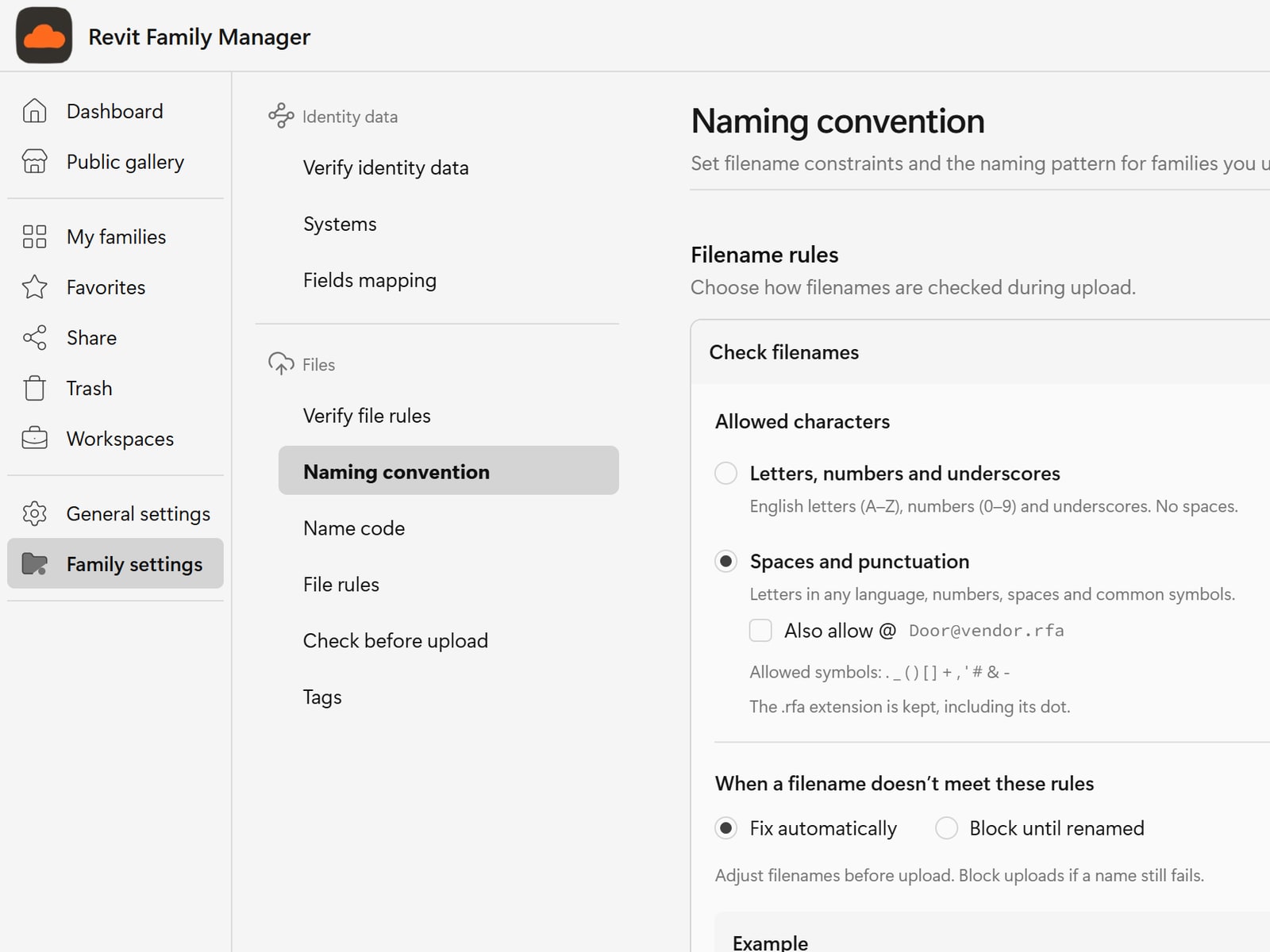
The two levels of naming rules
Naming rules can exist at two levels:
- General rules are the ones on the Naming convention page. They apply to every family you upload, unless a folder says otherwise.
- Folder naming rules assign one saved naming convention to a single folder. Families that go into that folder, and its subfolders, are checked against the folder's rule instead of the general one.
See Naming conventions for how to set a folder rule.
What the rules apply to
| Action | Checked against the rules? |
|---|---|
| Uploading a file | Yes |
| Copying or moving a family into a folder that has its own naming rule | Yes, and it is refused if the name does not match |
| Renaming a family | No. A rename is not blocked, so a family can later fall out of line |
| Families already in your library | Only when you run Verify file rules |
The server checks again after your browser does, so a file cannot skip the rules by going around the dialog.
Start from the recommended defaults
If you are not sure where to begin, use Reset to defaults on the File rules or Naming convention page. It saves these values straight away:
| Setting | Recommended value |
|---|---|
| File size | At least 10 KB, at most 10 MB |
| Filename rules | On, "Spaces and punctuation", at least 2 and at most 255 characters, merge repeated spaces, trim the ends, fix automatically |
| Naming pattern | None, so any name is accepted |
| Categories and Revit versions | No restriction |
| AI name suggestions | On |
Workspace rules
Everything above describes the rules for your own library (My families). A workspace has its own set of rules, built from the same pieces, and they apply to everything uploaded into that workspace, from the web and from Revit.
You find them in the workspace's Settings:
| Menu item | What it holds |
|---|---|
| Naming convention | Filename rules and the naming pattern, as on the personal page |
| File rules | File size, categories and Revit versions, plus AI name suggestions |
| Verify identity data | Scores for the identity data and the file rules |
| Rename history | Every rename made by the rules |
Only the workspace owner and admins can change them. Everyone else sees the same pages, read only, with the notice Only workspace admins can edit these rules. You can view them here — they still apply to every family you upload.
Your personal rules and a workspace's rules are separate: changing one never changes the other, and a family is checked against the rules of the place it is uploaded into.